
Download Yummy FTP – Fast, Secure FTP Client for macOS
Overview
Yummy FTP is a dedicated FTP client designed exclusively for macOS users who need a reliable, high‑speed solution for moving files between local machines and remote servers. Developed by Yummy Software, the application supports a full suite of transfer protocols—including FTP/S, SFTP, and WebDAV/S—making it suitable for web developers, system administrators, and anyone who manages website assets or server backups. Although the program is no longer actively maintained, its legacy features such as automatic failure recovery, directory synchronization, and built‑in scripting via AppleScript still attract a niche audience that values its simplicity and speed. Yummy FTP shines in environments where macOS 10.15 Catalina or earlier is still in use, offering a lightweight, 32‑bit binary that runs without the overhead of modern, resource‑hungry alternatives. If you’re searching for a free, secure tool that can handle large batch uploads, schedule recurring transfers, and provide granular bandwidth control, Yummy FTP may still fit the bill—provided your hardware meets the legacy requirements.
Key Features & Capabilities
- Support for FTP/S, SFTP, and WebDAV/S – ensures encrypted, secure transfers.
- Automatic failure recovery – resumes interrupted uploads without manual intervention.
- Directory synchronization – keeps local and remote folders perfectly mirrored.
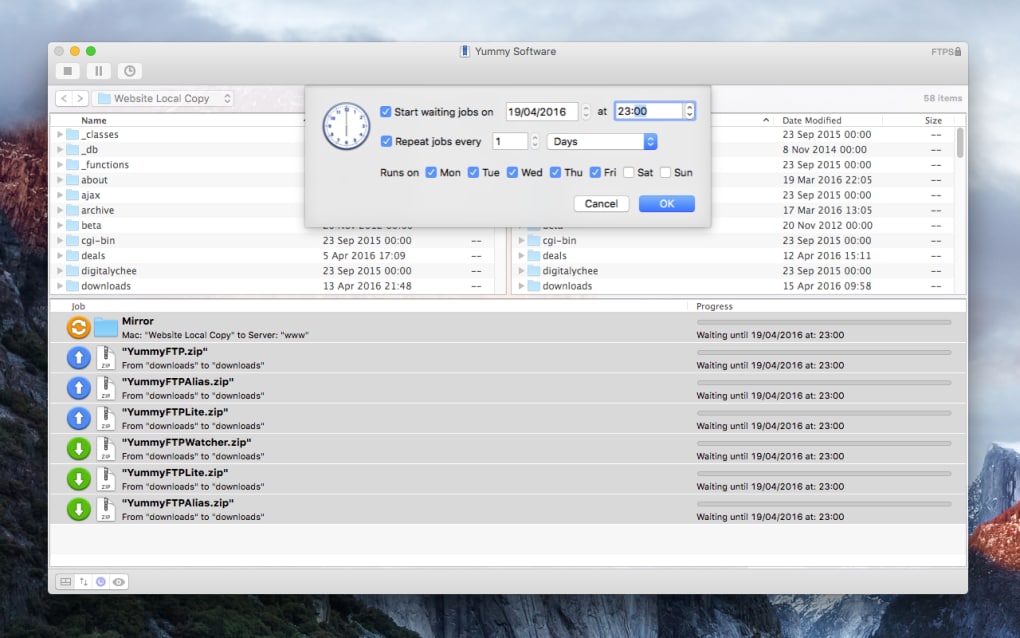
- Scheduling engine – allows you to set recurring transfers at specific times.
- Bandwidth limiting – prevents network saturation during large uploads.
- File and folder filtering – includes/excludes items based on patterns or extensions.
- Built‑in FTP Alias manager – quick shortcuts to frequently used servers.
- Integrated text editor – edit remote files directly within the client.
- Customizable window layout – drag‑and‑drop panels for a personalized workspace.
- Bookmark manager – store and organize server connections for instant access.
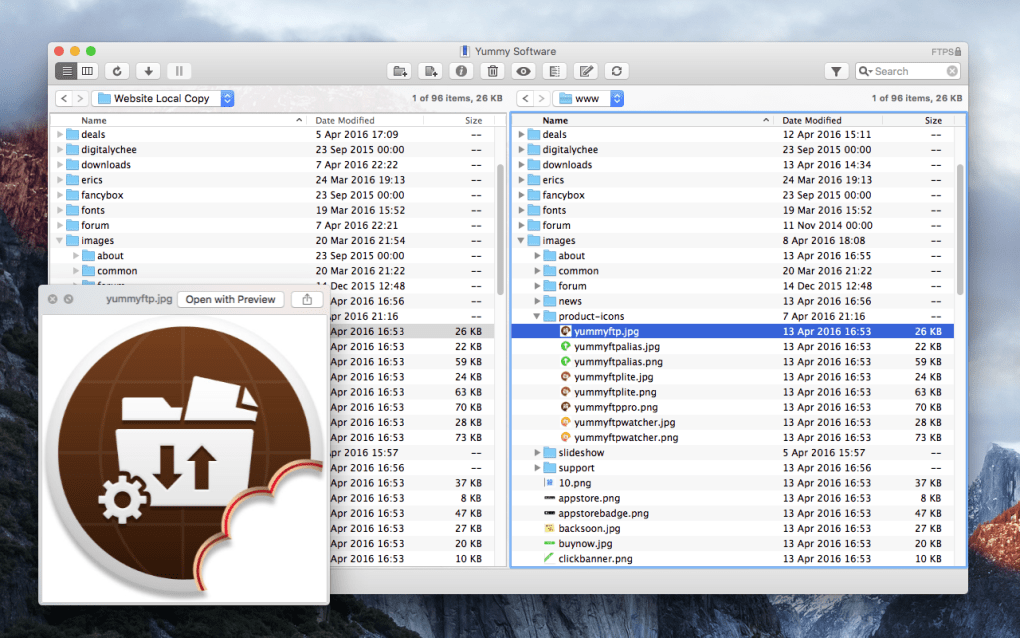
Beyond the headline features, Yummy FTP also offers a straightforward drag‑and‑drop interface that feels native to macOS, making it easy for beginners while still providing the depth that power users demand. The client’s automation capabilities are particularly noteworthy; developers can embed AppleScript snippets to trigger post‑upload actions, such as clearing caches or notifying teammates via email. Although the UI may appear dated compared to modern 64‑bit alternatives, the underlying engine remains robust, delivering transfer speeds that often outpace newer competitors on the same hardware. The combination of protocol flexibility, granular control, and low system overhead makes Yummy FTP a compelling option for legacy macOS environments where stability and speed are paramount.
Installation, Usage & Compatibility
Installing Yummy FTP is a simple three‑step process that can be completed in under five minutes on supported macOS versions. First, download the DMG file from a reputable archive site—ensure you verify the checksum to avoid corrupted binaries. Next, open the DMG and drag the Yummy FTP icon into the Applications folder.
Because the software is 32‑bit, macOS Catalina (10.15) or earlier is required; newer releases (Big Sur, Monterey, Ventura, and later) will refuse to launch due to Apple’s 64‑bit‑only policy. After copying, launch the app, and you’ll be greeted by a clean window where you can add a new server via the “+” button. Fill in the host address, port, username, and select the appropriate protocol (FTP, SFTP, or WebDAV).
For users who rely on AppleScript, the “Scripts” menu provides a quick entry point to attach custom scripts to events such as “After Upload” or “On Error.”
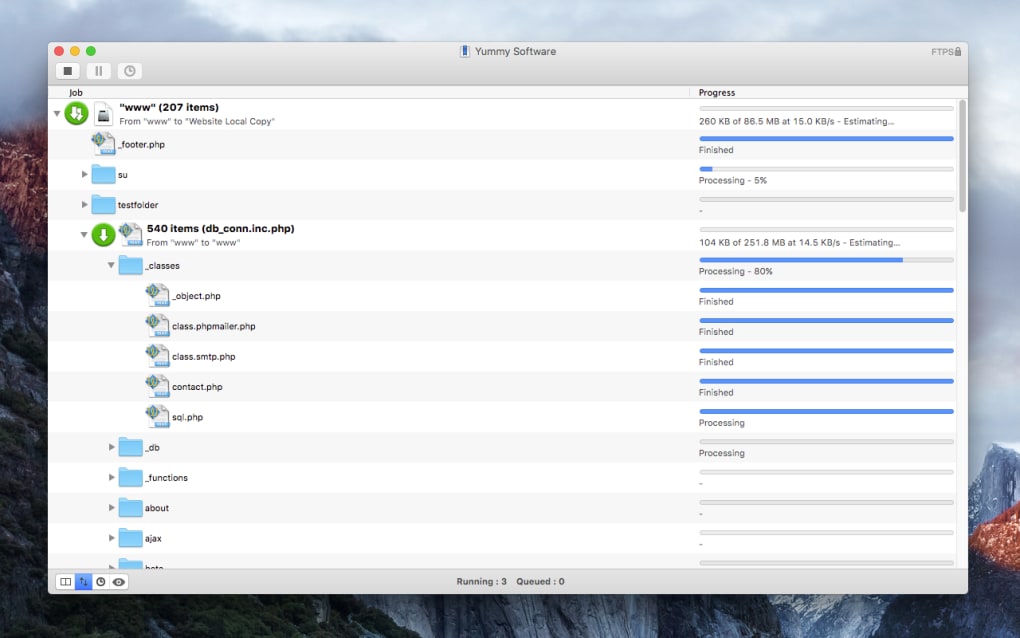
Once configured, transfers are initiated by dragging files from Finder into the remote pane or by using the “Upload” button. The built‑in queue shows real‑time progress, and you can pause or cancel any job at will. Advanced users can open the Preferences window to enable bandwidth throttling, set up automatic synchronization rules, or schedule recurring jobs via the “Scheduler” tab. Because Yummy FTP is no longer receiving security patches, it is advisable to restrict its use to trusted networks and to avoid handling highly sensitive data unless you employ an additional VPN layer. Lastly, the software’s 32‑bit nature means it will not run on macOS 11 (Big Sur) or later, so organizations planning future upgrades should consider migrating to a modern, supported FTP client to maintain continuity.
Supported operating system: macOS 10.6–10.15 (32‑bit only)
Pros, Cons & Frequently Asked Questions
Pros
- Free to download and use.
- Supports multiple secure protocols (FTP/S, SFTP, WebDAV/S).
- Automatic failure recovery saves time on unstable connections.
- Robust scheduling and synchronization features.
- Low system footprint; runs smoothly on older Macs.
Cons
- No longer maintained—no security updates or bug fixes.
- Limited to 32‑bit, incompatible with macOS Catalina + (11+).
- Interface appears dated compared to modern alternatives.
- Documentation is scarce, relying on community forums.
- Potential compatibility issues with newer SSH key algorithms.
Frequently Asked Questions
Is Yummy FTP still safe to use on older macOS versions?
While Yummy FTP itself has no known critical vulnerabilities, the lack of updates means any newly discovered security flaws will remain unpatched. Use it on trusted, internal networks and consider adding a VPN or firewall for extra protection.
Can I run Yummy FTP on macOS Big Sur or later?
No. Yummy FTP is a 32‑bit application, and macOS 11 (Big Sur) and later only support 64‑bit software. You would need to use an alternative FTP client for those systems.
Does Yummy FTP support SFTP key‑based authentication?
Yes, the client can use public‑key authentication for SFTP connections. However, because it is no longer updated, compatibility with newer key formats (e.g., Ed25519) may be limited.
How does the scheduling feature work?
Within the Preferences window, you can create a new schedule, select the files or folders to transfer, define the remote destination, and set the frequency (daily, weekly, monthly). The client will automatically launch the transfer at the specified time, even if the UI is minimized.
Is there a way to edit remote files directly from Yummy FTP?
Yes, the built‑in text editor allows you to open, edit, and save files on the remote server without leaving the application. This is handy for quick configuration changes or code tweaks.
Overall Rating: 3.5/5 – Yummy FTP delivers solid performance for legacy macOS users, but the lack of ongoing support and 32‑bit limitation make it a niche choice today.
Conclusion & Call to Action
Yummy FTP remains a testament to the era when lightweight, protocol‑rich FTP clients were the backbone of web development on macOS. Its speed, secure protocol support, and automation capabilities still hold value for users operating on macOS 10.15 Catalina or earlier. However, the discontinuation of updates, combined with the shift to 64‑bit‑only macOS releases, means that new adopters should weigh the risks carefully.
If your workflow depends on a stable, free FTP client and you’re confident your hardware meets the legacy requirements, you can still download Yummy FTP from trusted archives and enjoy its feature set today. For anyone planning to upgrade to newer macOS versions or who requires ongoing security patches, exploring modern alternatives such as Cyberduck, Transmit, or FileZilla is advisable. Regardless of your choice, secure file transfer remains a critical part of any digital operation—so select a tool that aligns with both your technical needs and future‑proofing strategy.
Download Yummy FTP now and experience fast, reliable FTP transfers on your supported Mac.







